
18 min · Free
This lesson moves from chart examples to the MetaTrader 4 desktop platform. You will install an official copy, log in to a demo account, and practise opening a small EUR/USD position. Set a stop and target, locate the position in the Trade tab, and close it when the exercise is complete. No live account is needed.
Why traders still use MT4
MetaTrader 4 was released in 2005. Many Forex brokers still offer it, and MQL4 has a long-established collection of custom indicators and Expert Advisors. Existing tutorials can help you recognise the controls and troubleshoot common problems.
Its main workflow uses a chart, an order window, an open-position list, and account history. A familiar layout and a light desktop client make it practical for learning on modest hardware.
It also has limits. It has fewer built-in chart periods and market-depth controls than MT5. Availability differs by broker and version. The basic skills of preparing an order and managing exposure carry over to other platforms.
- MT4 has been in use since 2005 and is still offered by many Forex brokers.
- MQL4 supports custom indicators and Expert Advisors.
- The client can run on modest hardware.
- Learn the core chart and order workflow before adding tools.
Download and install from a trusted source
Use your broker’s verified client portal or the official publisher. A broker-provided copy can include the correct server list and is easier for that broker’s support team to identify. Avoid third-party installers, which may be modified or out of date.
Open your broker’s demo account and sign in to its client portal. In Downloads or Platforms, choose the official build for your operating system or mobile device. Run the installer and follow the prompts. The instructions below use the desktop layout.
If the first launch prompts for a new account, select or connect your existing demo account. Menus may vary slightly with the version or broker build. If you cannot obtain the installer from your broker, verify the publisher directly.
- Find Downloads or Platforms in the verified broker portal.
- Choose the official desktop or mobile build appropriate to your device.
- Run the installer and follow its setup prompts.
- Connect the demo account supplied by the broker after installation.
Log in with the three broker details
The broker gives you an account number (Login), password, and server name such as BrokerName-Demo. Keep the details secure. A live server and a demo server can have similar names, so check that you are connecting to the demo.
On desktop, open File → Login to Trade Account and enter the three items. If the server is missing, check the broker’s instructions for adding it or use its official installer. Save credentials only on a device you control.
Look for an active connection and changing quotes during an open session. If you see “Invalid account”, recheck the login, server and password. A quiet market or a closed session can also leave quotes unchanged for a while.
- Use the demo account number, password, and server from the broker.
- Open File → Login to Trade Account.
- Check the connection indicator and Market Watch quotes in an active market.
- Check the three credentials again if you see “Invalid account”.
Four areas of the desktop interface
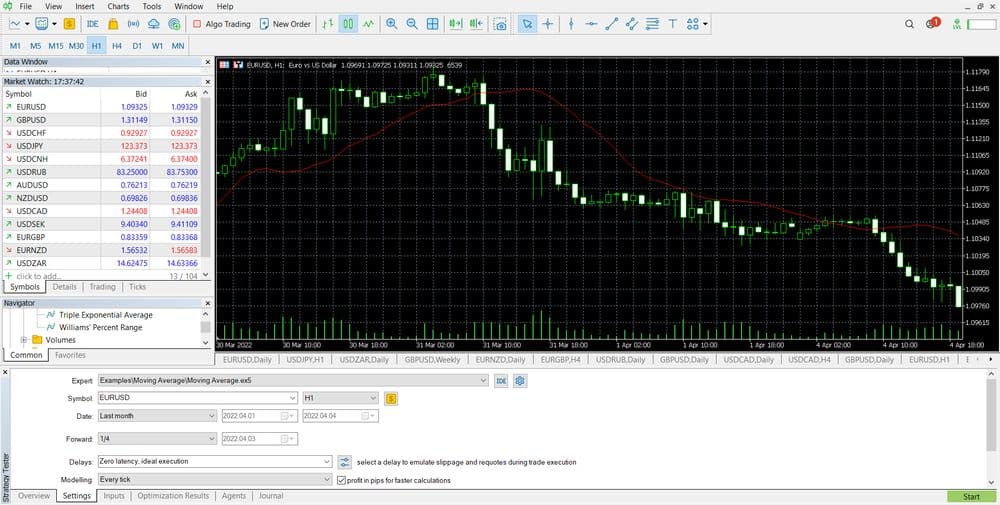
Market Watch lists instruments and quotes. Navigator shows accounts, indicators, and Expert Advisors. Depending on the layout, you will usually find these panels beside the chart.
The chart is your working view. Terminal contains separate tabs for open positions, account history, and messages. An open position appears in Terminal → Trade.
Toggle panels from View or use Ctrl+M for Market Watch, Ctrl+N for Navigator, and Ctrl+T for Terminal. Hiding a panel does not close an order or delete its records.
- Market Watch: instruments and quotes. Right-click and choose Show All to expand the available symbols.
- Navigator: accounts, indicators, and Expert Advisors. Drag an indicator to a chart to add it.
- Chart: open with File → New Chart or select an instrument from Market Watch.
- Terminal: inspect active positions in the Trade tab at the bottom.
Open a chart and choose a time frame
From Market Watch, right-click a symbol and select Chart Window. You can also use File → New Chart or drag the instrument into the chart workspace. Use Window → Vertical Tiles or Tile Windows to compare several charts, such as EUR/USD and XAU/USD.
The desktop toolbar offers M1, M5, M15, M30, H1, H4, D1, W1 and MN. An H1 candle summarises one hour. Shorter charts contain more detail and can look noisy when you are learning.
Right-click the chart and open Properties, or press F8. Select candle colours with good contrast. Hide the grid if it distracts from price. Use consistent colours when comparing charts.
- Use Chart Window or drag an instrument from Market Watch.
- The nine standard periods run from M1 to MN.
- Use tiled windows to compare instruments or time frames.
- Change the appearance with F8 or Properties.
Open the order window and practise on demo
Press F9, use Trading → New Order on the chart, or double-click a symbol in Market Watch. Check Symbol, Volume in lots, Type, Stop Loss and Take Profit. The available order settings depend on your broker and execution mode.
For the demo exercise, select EUR/USD and 0.01 lot. Confirm the account is a demo, choose a market order, and set a stop below the market and target above it for a buy. The platform may require you to attach protective levels to the open trade after execution. Submit and confirm that the position appears in Terminal → Trade.
Use the same checklist for the exercise whether the result is a gain or loss. The point is to recognise the controls and verify what the platform actually recorded. Use the Modify dialog if you need to inspect or update an accepted protective level.
- Press F9 to open New Order.
- Select EUR/USD.
- Enter 0.01 in Volume.
- Select the market execution option available on the account.
- Submit the demo buy and verify the position in Terminal → Trade.
Manage and close the position
In Terminal → Trade, right-click the open position and choose Modify or Delete Order to edit the stop or target. To close the demo position, use Close Position or open the row and select the close button. Confirm the resulting position and check Account History.
One Click Trading skips the usual confirmation dialog when enabled. That makes mistakes easier to execute too. Keep it off while you learn the layout and practise the order checklist.
Show the ask line if it helps you see the distance between bid and ask. Turn Auto Scroll off while reading old candles, simplify the chart colours, and keep the ordinary order confirmation available.
- Open positions appear in Terminal → Trade.
- Use the row’s context menu to modify or close a position.
- Show the ask line in chart settings where available.
- Use F8 to simplify colours and leave One Click Trading off while learning.
Key points
- Download MT4 through a verified broker or publisher.
- Use the account number, password, and server to log in.
- Market Watch, Navigator, chart, and Terminal are the four main workspace areas.
- The desktop toolbar offers nine standard time frames.
- F9 opens a form for symbol, volume, order type, and protective levels.
- On a USD account, 0.01 standard lot of EUR/USD is about $0.10 per pip.
- Use Terminal → Trade to locate, modify, and close an open position.
- One Click Trading removes confirmation. Leave it off while learning.
Lesson quiz
Sign in to enroll and save progress.